How it works
Apps block when you arrive.
They come back when you leave. Here's each step, every other way to block, and every permission Descroll asks for and why.
Step 1
Pick a Place
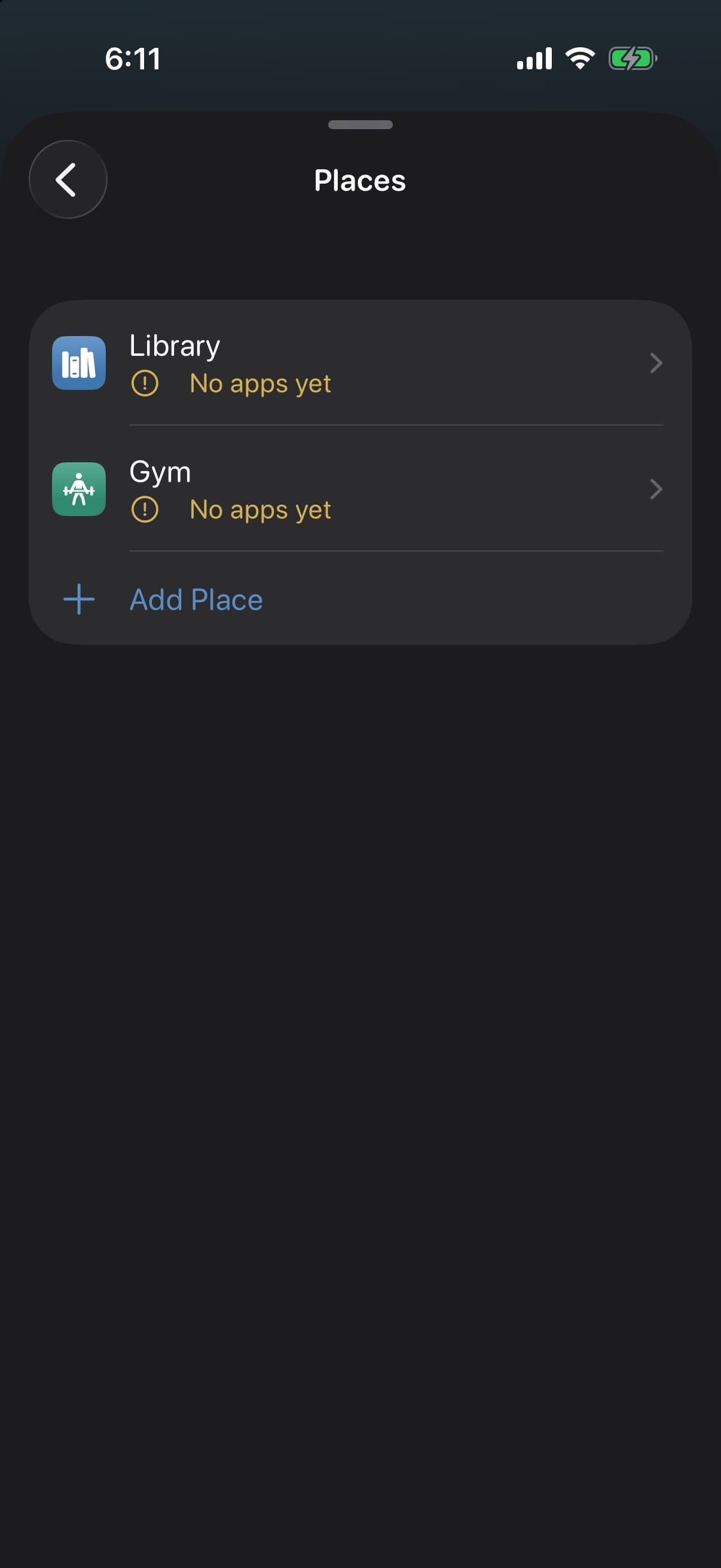
Search for a spot or drop a pin. Start from a template, like Library, Campus, Gym, Studio or Bedtime, and it sets the zone, the hours and what to do instead.
Indoors, link the Place's Wi-Fi as a second signal for arriving.
Hours can be Any time you're there, Evenings (5 to 8 PM) or Nights (9 PM to 7 AM), all free. Weekdays 9 to 5, or any days and times you choose, come with Descroll+.
One Place is free, with full automatic blocking. Descroll+ adds up to 20.
Step 2
Choose the apps
Pick the apps or whole categories that pull you away, in the system's own Screen Time picker, and keep them in collections, like Social or Games. Every block uses the same collections, and each Place can block different ones. One collection is free; more come with Descroll+.
Websites too: type any address in the Websites row on a Place or Block now, and it blocks in the browser.
The system keeps your choices private, even from Descroll. It gets what it needs to block those apps, and nothing else.
Apps you always need can stay always allowed.
Library
4 apps
- Social
- Short videos
- Games
- News
Picked in the system's Screen Time picker. Descroll can block them, but never sees which ones they are.
Step 3
Arrive, and they block
The system tells Descroll when you cross into a Place, even while it's closed. Your chosen apps block until you leave.
Open one and the block screen says what happened in plain words: You're at Library. Social is back when you leave. Then one thing that fits the Place, like reading a few pages, with a button to do it.
With Answer to unblock, the default, a true-or-false card can come first. Get it right and that one app opens for 5 minutes. Seven topics, from science to Spanish.
The Descroll tab shows Blocking now· Until you leave while it lasts.
You're at Library
3 reaches for Social today.
Social is back when you leave.
Read a few pages instead.
Beyond Places
Other ways to block
Some hours don't happen in one place, like a bus ride. Some need a block only for a while, like a break.
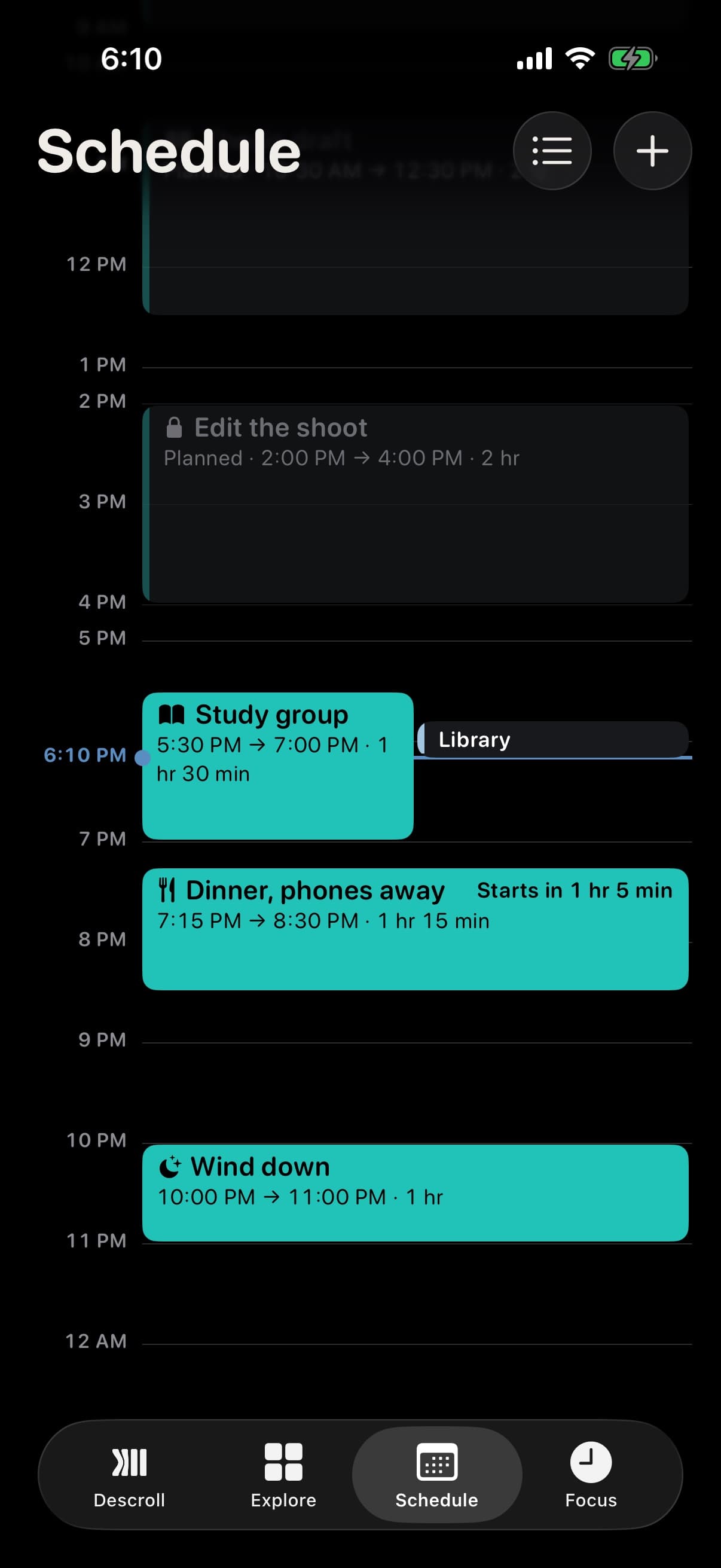
Schedule lays out your day hour by hour. Tap an empty hour to add a time block, or hold and drag to size it. Swipe back through past days to see what really blocked, or open Upcoming for the next two weeks. With Calendar on, your events show beside your blocks.
Start a block in Descroll and the screen dims and counts 3, 2, 1, then says Blocking until 4:30 PM and Put your phone down.
Block together shares a time block with friends, through the cloud account already on your phone. Each of you gets your own block at the same time, and everyone sees each person as Joined, Blocking, Kept, Drifted or Left. Nobody sees your apps, reaches, Presence or moments.
- Free
Block now
Block your chosen apps anywhere, from 15 minutes to 8 hours.
- Free
Time blocks
Tap an empty hour on Schedule, or hold and drag to size it. One is free, and it can repeat.
- Free
Focus timer
Turn the dial to anything from 5 to 120 minutes. Apps stay blocked until it ends.
- Free
Daily limits
Give a collection time each day, like 20 min. Used up, its apps block until midnight.
- Free
Block together
Share a time block with friends. Each of you gets your own block at the same time.
- Descroll+
Calendar focus
Pick the events that should block apps, like classes or shifts.
- Descroll+
Routine
Plans blocks before the hours you usually reach, learned on your phone, with one heads-up a day.
- Descroll+
More time blocks
As many as your week needs, each with its own apps.
Strict
A block that holds
Every block is Strict, so there's no snooze and no “just 5 more minutes.” Every way out is a deliberate step: a walk, a wait, a right answer or a hold.
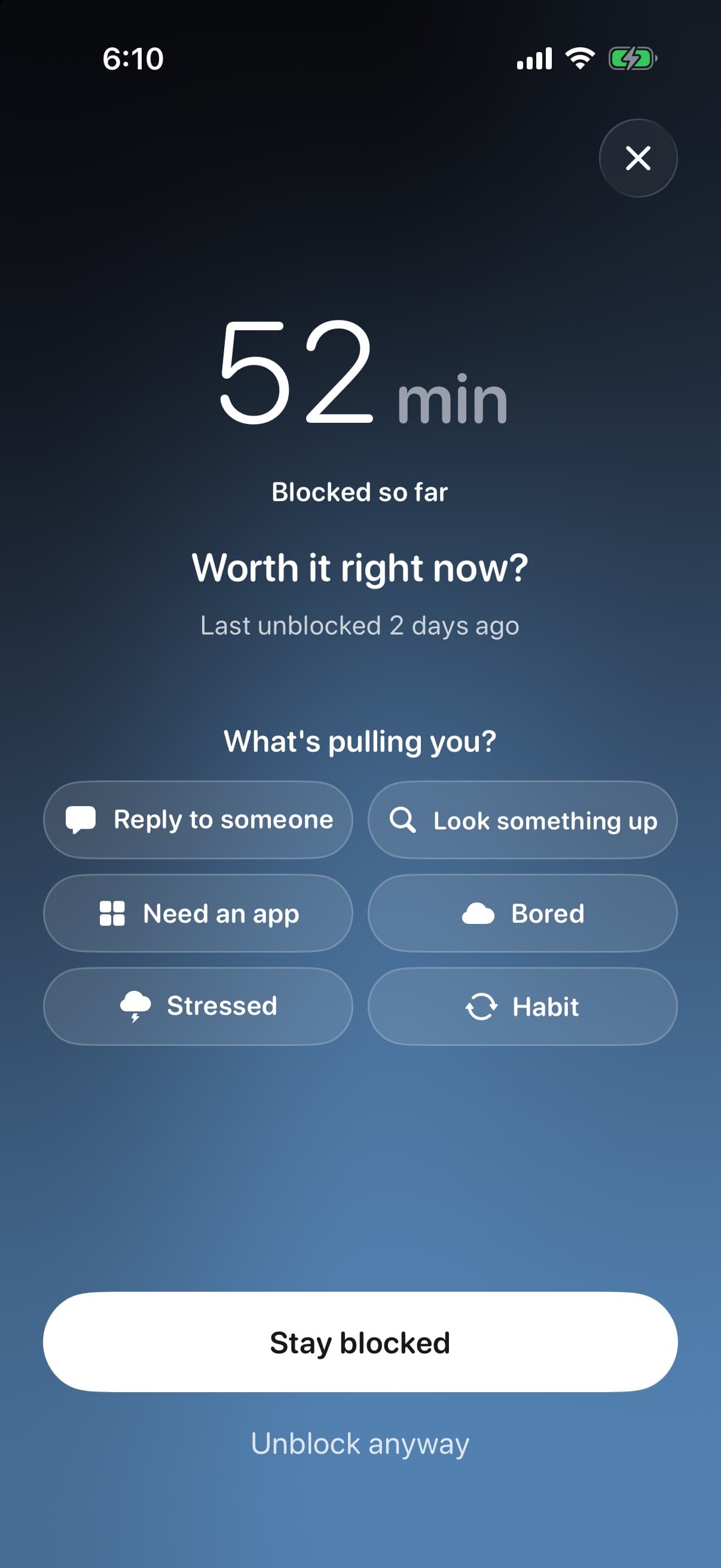
Tap Unblock and a pause comes first: your reaches today, “What's pulling you?”, a big Stay blocked and a quiet Unblock anyway. Bored, or just habit? It offers one of your own swaps, like “Walk the block instead”.
Deep Focus time blocks hold against everything but Emergency.
While a block runs, anything that would loosen it waits until it ends, and apps can't be deleted. Tightening always works.
You leave the Place
Walk out of the zone and your apps are back.
The block ends
A time block, Block now or the Focus timer reaches its end.
Your unblock tag
Tap the NFC sticker you paired in Settings. Keep it somewhere you have to walk to.
An early unlock
5 a week by default, 1 to 10 in Settings. Each starts a 10-second wait with Stay blocked one tap away.
Answer to unblock
A right answer on the block screen opens that one app for 5 minutes. Or set quiz cards to Ask only, or Off.
Emergency
Hold to end every block now, Deep Focus and used-up daily limits included. It doesn't use an early unlock.
Look back
See what you got back
Presence is one number from 0 to 100 that carries over from your recent days, the newest counting most. “+3 today” is what today added. It's made from Focus time, Let go, Sleep, Reflection, Challenges and Blocks kept, and Focus time counts most.
Empty days and missing data are left out, never counted against you. Totals leave out your night, set from Health or once in Settings.
A block you kept ends with its reward: rings and a glow around the mark, one success haptic, the time you got back, and Next, one of your swaps.
Explore starts with Your path, a winding track of first steps with a quiet guide, then your plan. Change its length or pace any time; the sessions wait for you.
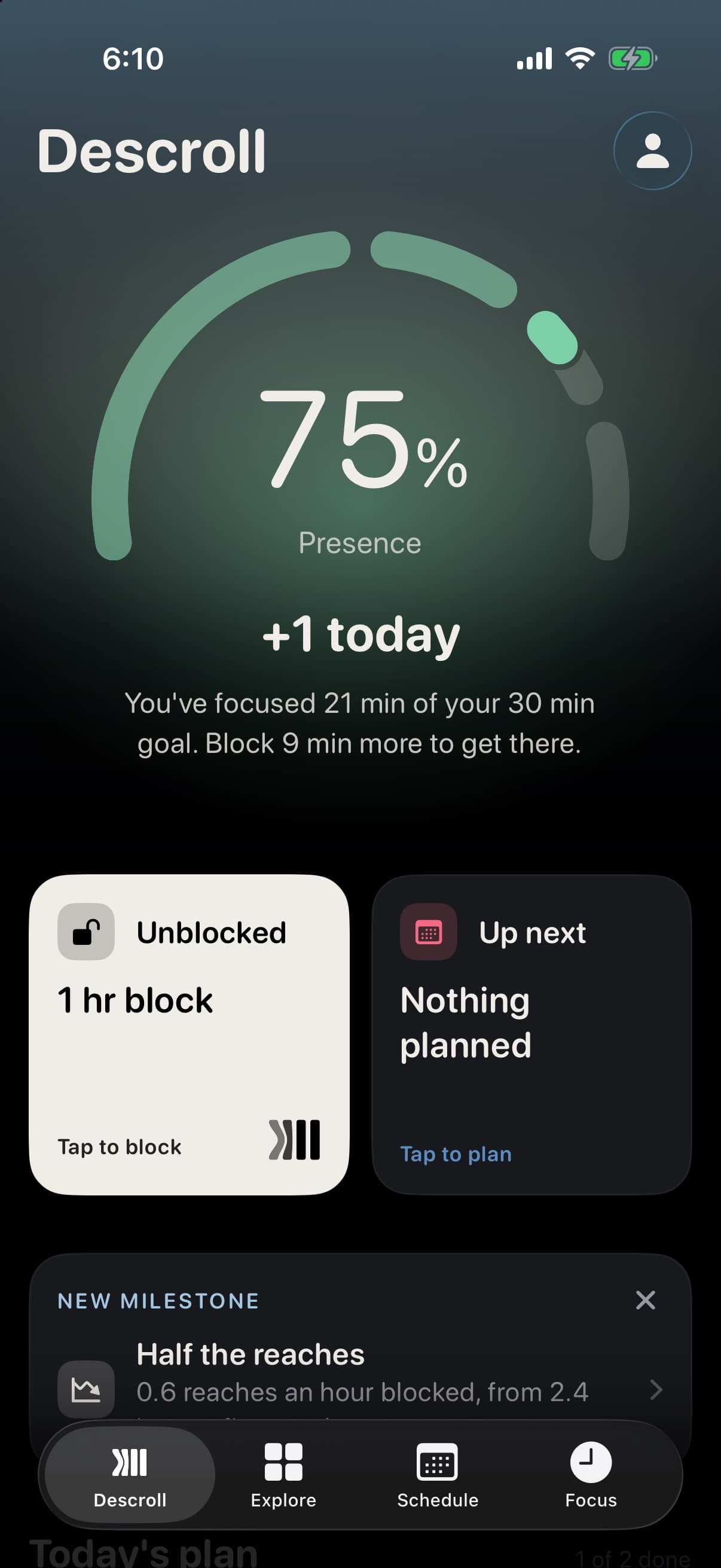
Presence
- Getting started0 to 49
- Finding it50 to 69
- Steady70 to 84
- Present85 to 100
Made from
- Focus time
- Let go
- Sleep
- Reflection
- Challenges
- Blocks kept
- Free
Moments
When a block ends: How did it feel? What did you do with the time? One tap each.
- Free
Last week
At the start of a week, the Descroll tab shows what beat your own first week. Never anyone else.
- Descroll+
Trends
Key metrics, patterns, each Place and your Presence history, always with how many days they rest on.
- Descroll+
Your plan in Explore
30 days of short Learn, Do and Reflect sessions in five phases. A missed day never resets it.
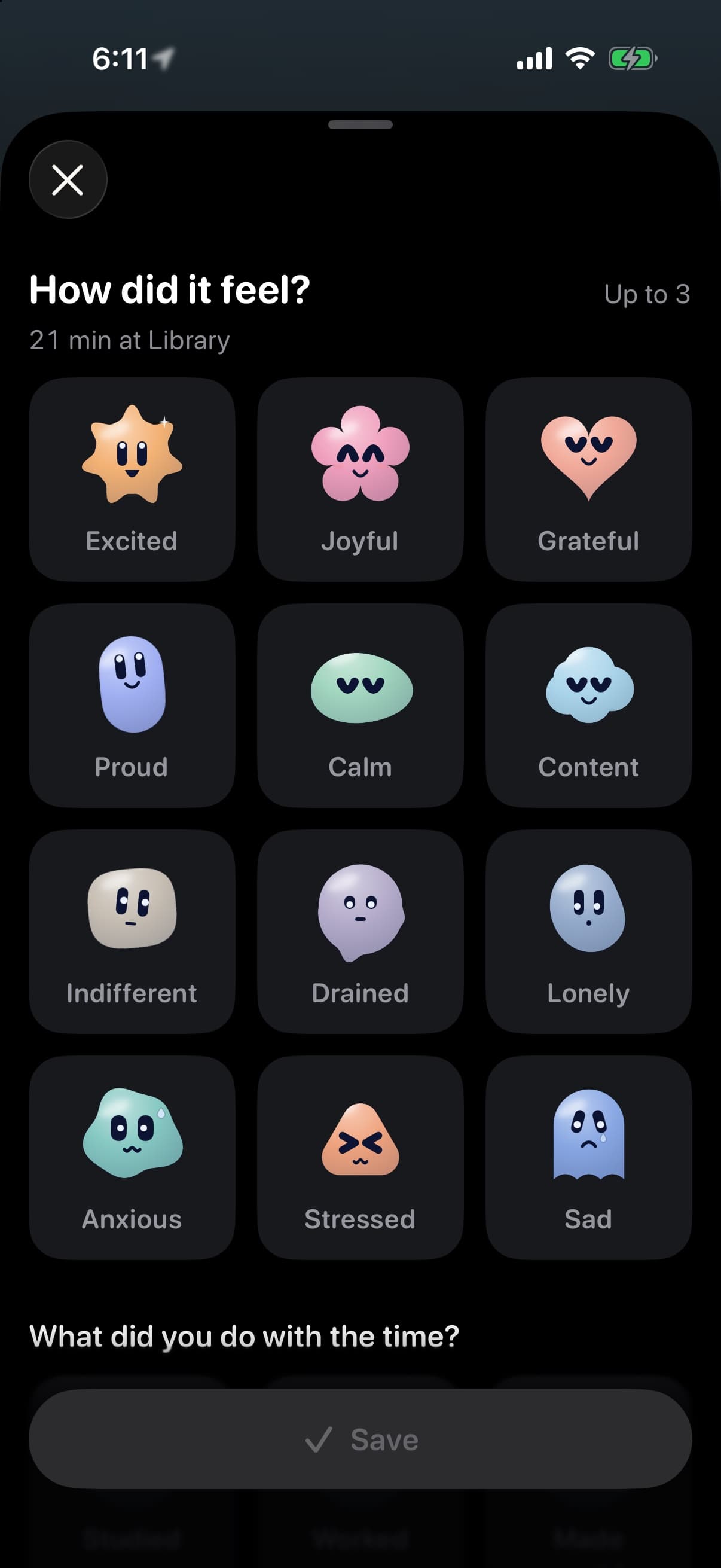
Moments
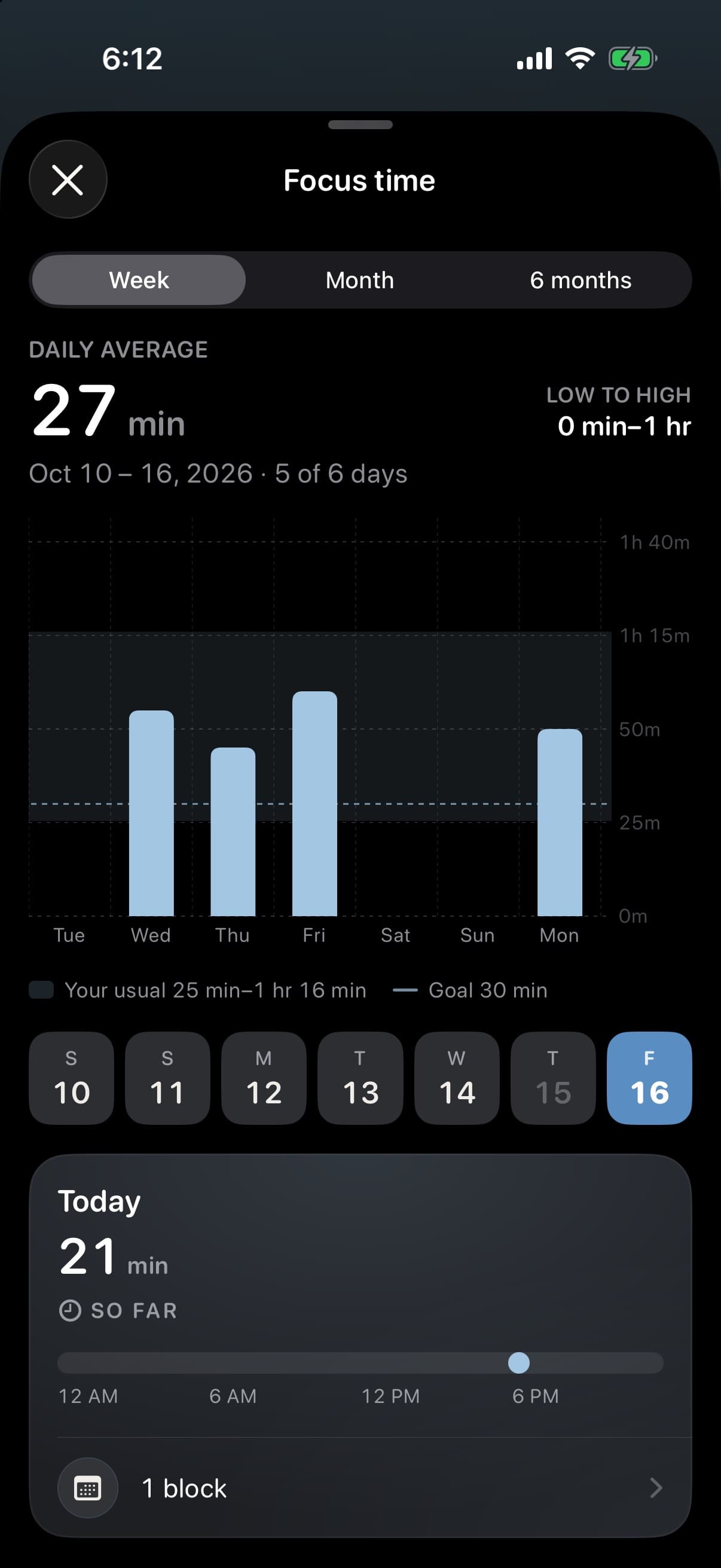
Trends
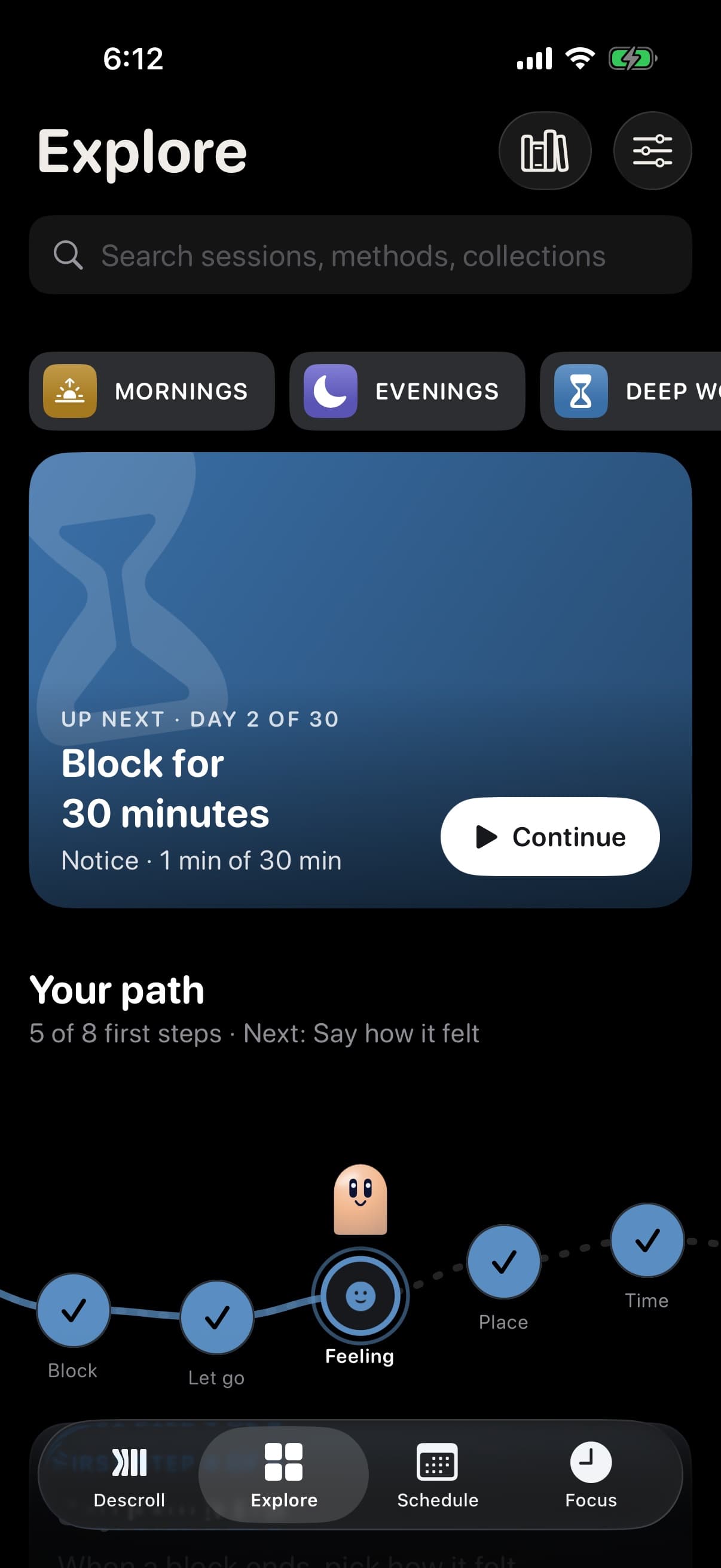
Explore
Hands-free
Works without looking
Most days, there's nothing to open. Arriving is the trigger.
For the rest, start a block with your voice, from Control Center, with the Action button or from a widget, and see what's blocking on the Lock Screen.
Tuesday, October 13
9:41
Until you leave
Library · Since 3:18 PM
Voice
Say “I'm at the library” with your voice, and that Place starts blocking.
Shortcuts
Add Time Block and Block Now, for your own shortcuts and automations.
Control Center
A Block now control, one tap from anywhere.
Action button
Set it to Block now, and blocking is one press away.
Focus filters
Link a Place to a Focus, and turning that Focus on starts it.
Widgets
Presence on your Home Screen, with a Block now button on the medium size.
Lock Screen countdown
While a block runs, see when your apps come back.
Screen reader
Every control has a full label, and you hear when a Place starts blocking.
Permissions
Every permission, and why
Each one is explained before the system asks. Here's what it's for, and what happens if you say no.
Location, Always
For PlacesSo Places block apps when you arrive and bring them back when you leave, even while Descroll is closed. It also checks the Wi-Fi name you link to a Place. Descroll never sends your location anywhere.
If you say no: With While Using, Places work only while Descroll is open. Without location, Block now, time blocks and the Focus timer still work.
Screen Time
NeededTo block the apps you choose. You allow it for yourself only, and the system keeps your choices private, even from Descroll.
If you say no: Descroll can't block anything.
Notifications
OptionalFor reminders around your blocks and your plan, Routine's one heads-up a day, and a reminder 2 days before a free trial ends.
If you say no: Blocks still start and end on time.
Health
OptionalReads sleep, heart rate variability, resting heart rate, steps, time in daylight, mood and workouts for Presence. It can save breathing resets as mindful minutes. Descroll never sends it anywhere.
If you say no: Presence leaves those parts out, and never counts them against you.
Calendar
OptionalFor calendar focus, so the events you pick block apps, and to fit time blocks around your day. Descroll never sends your calendar anywhere.
If you say no: Places, time blocks and Block now work the same.
Reminders
OptionalCounts what's due and what you finish each day, for Trends. It never changes a reminder or keeps a title.
If you say no: Trends leaves it out.
NFC
Only for tagsReads your unblock tag when you pair it and when you tap it. Nothing else.
If you say no: Without a tag, early unlocks still work.
Face or passcode
OptionalFor Lock Descroll, so only you can open it. Descroll learns only whether it matched.
If you say no: Descroll opens like any other app.
Change any of them later in Settings. No account, no server, no ads, no trackers. Read the Privacy Policy.